 Vigny DMA
Vigny DMA / CUSTOMER CHECKLIST
MAKCU setup checklist: controller, ports and support
Prepare a MAKCU controller setup: identify the model, USB connections, supported software and firmware, and what to send support if the device is not detected.
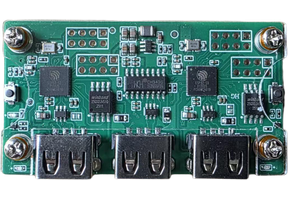
MAKCU is a separate part of the setup
The Vigny DMA catalog lists Makcu in the mouse-controller category, separately from DMA cards and fusers. It is not a DMA card, a companion computer or an HDMI fuser. Check the role of each component before adding it to a bundle.
Buying a controller does not establish that every application, firmware version or input device is compatible. Confirm your intended authorized workflow with support. This checklist does not provide automation scripts or promise compatibility with third-party games.
What to confirm before connecting
- Identify the exact controller model and hardware revision from the device or order information.
- Use the documented port map. Similar USB connectors can serve different purposes; connector shape alone is not a wiring diagram.
- Confirm which computer, input device and software version the setup instructions expect.
- Identify the required cables and whether they are included with your selected item or bundle.
- Check whether a device firmware update is actually required. Do not install an unrelated firmware image to resolve a simple connection question.
Use the model-specific setup guide
Open the setup guides and choose the MAKCU section. The current Vigny DMA Tool also shows a MAKCU settings area. Follow the documented connections for your device rather than transferring instructions from a different controller.
Confirm detection before changing advanced options. Record the current settings and the exact error if detection fails. Change one connection or setting at a time so that a later result can be explained.
A useful support report
Send the model, operating system, software and firmware versions, connection diagram and the exact symptom. A clear photo of labeled ports and a screenshot of the error are more useful than “not working”. Remove private keys, license keys and personal order-payment links from any screenshot.
For other parts of the same setup, use the DMA card checklist and HDMI fuser checklist. Ask about the exact combination before ordering; compatible-looking product images are not proof that the complete setup will work together.
MAKCU detection and connection: documented checks
What are the three USB ports for?
The current MAKCU setup documentation distinguishes USB1 for the host computer, USB2 for the software/COM connection, and USB3 for the mouse or controller. It also treats normal operation and firmware-flashing mode separately. Confirm your board revision against the guide before following a procedure. Source: MAKCU Setup Guide.
The device is visible, but software will not connect. What next?
MAKCU's troubleshooting page calls out COM-port selection, baud-rate agreement and another application already holding the USB2 connection. Check those conditions before concluding that the hardware has failed. Follow the current supplier instructions for your exact board; this is not a reason to try an unrelated firmware image. Source: MAKCU Troubleshooting.
Are all MAKCU boards updated the same way?
The published setup guide distinguishes V4 from older V3/AIO or modified-firmware paths. That distinction does not establish which revision a particular shop item contains. Confirm the actual revision before using a toolkit or update procedure. No driver or flasher is downloaded or executed by this article.