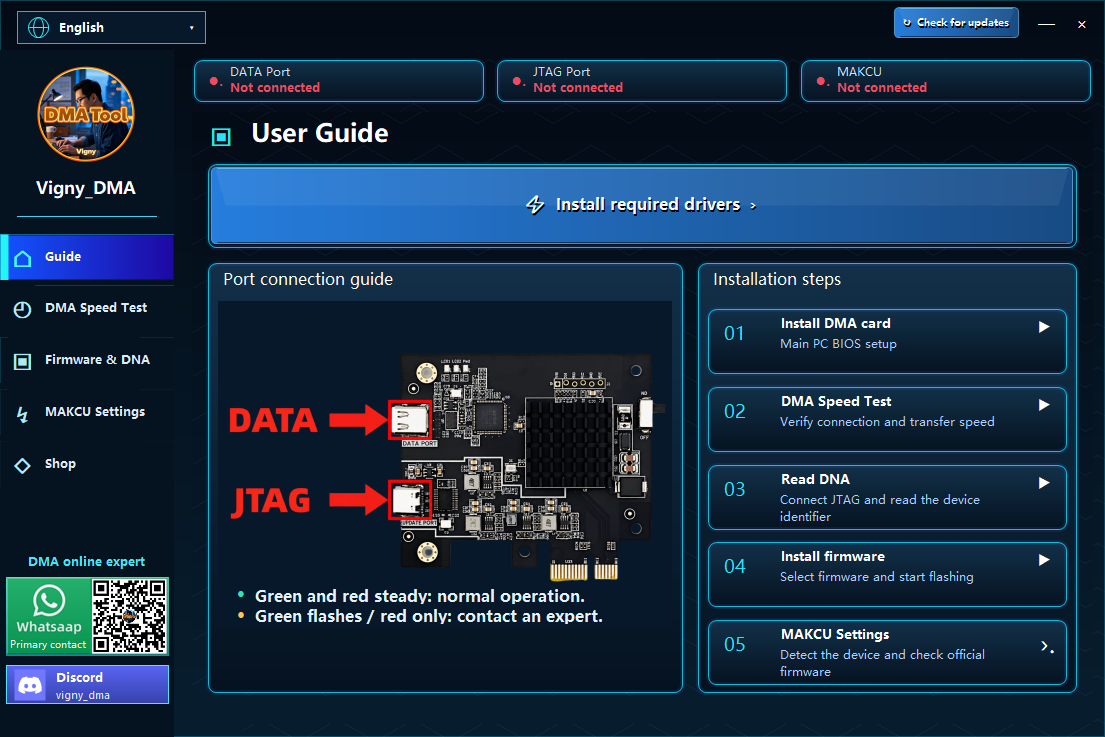
Two computers
One of them can be a laptop.
 Vigny DMAHARDWARE / FIRMWARE
Everything you need to check before connecting your DMA hardware, plus a simple path to your first device test.
Check the essentials before choosing a setup.
One of them can be a laptop.
Your main PC needs an available slot for the DMA card.
Your second PC needs USB 3.0 support.
Check system compatibility before installing.
Choose a step to watch its video guide.
English translation of the supplied HDMI 2.1 Mini AutoEDID Fuser Instructions. The wiring, indicator states, button actions and troubleshooting values below follow that document.
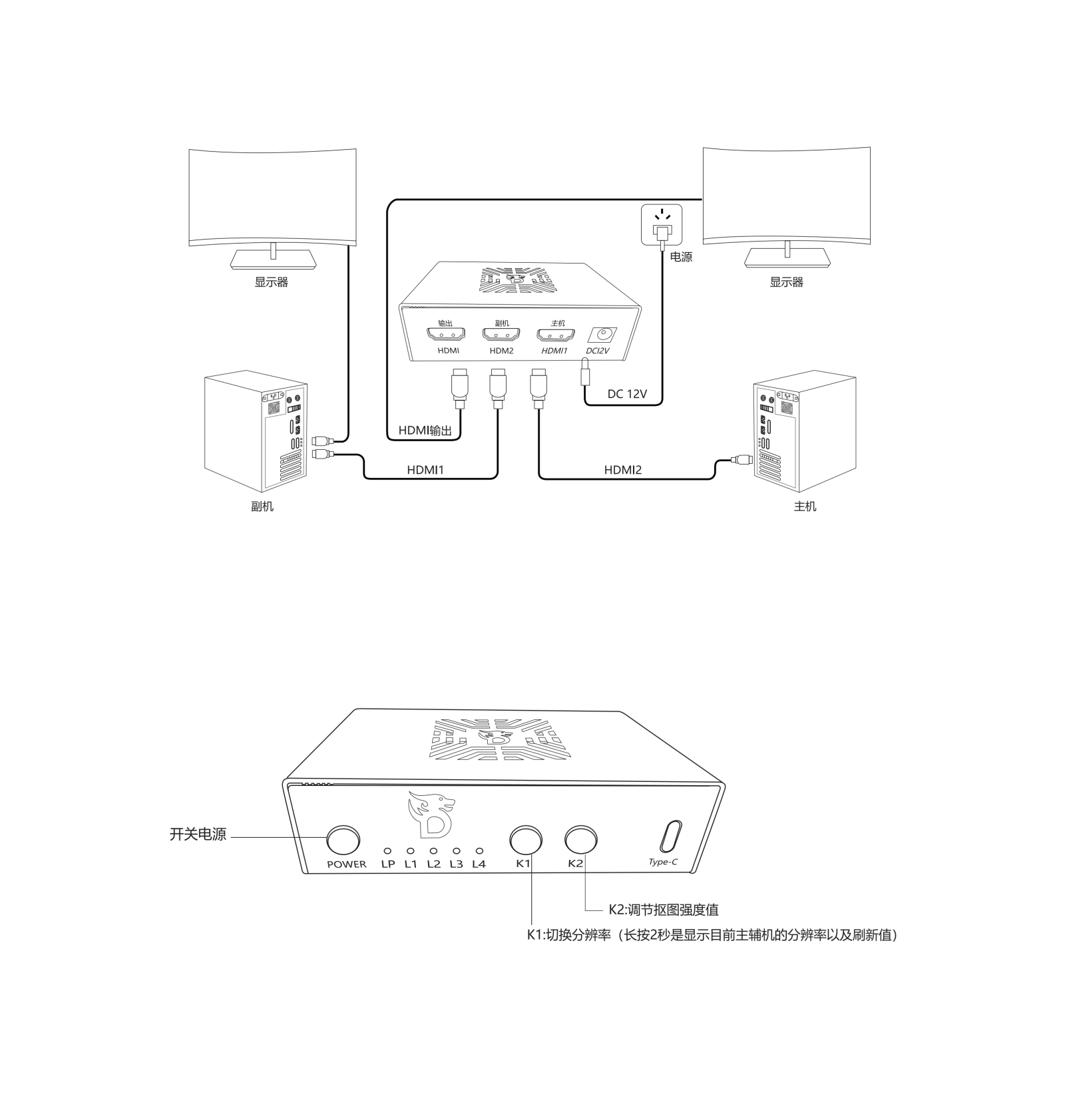
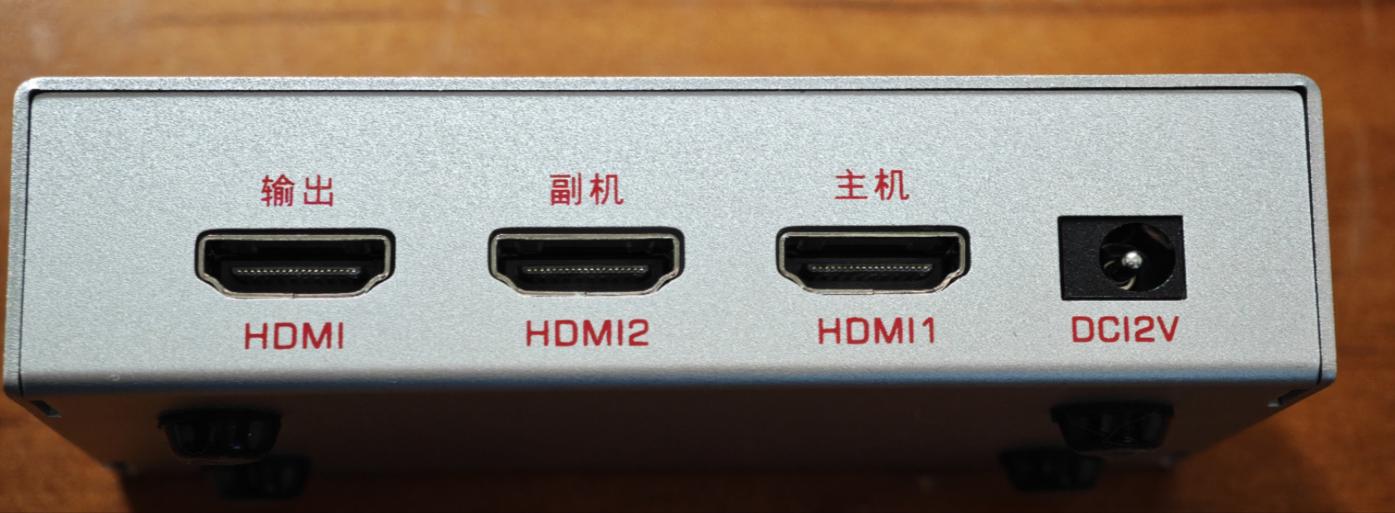
The Type-C port is for firmware programming and customising the built-in Fuser serial number. The supplier says this factory operation is not open to users.
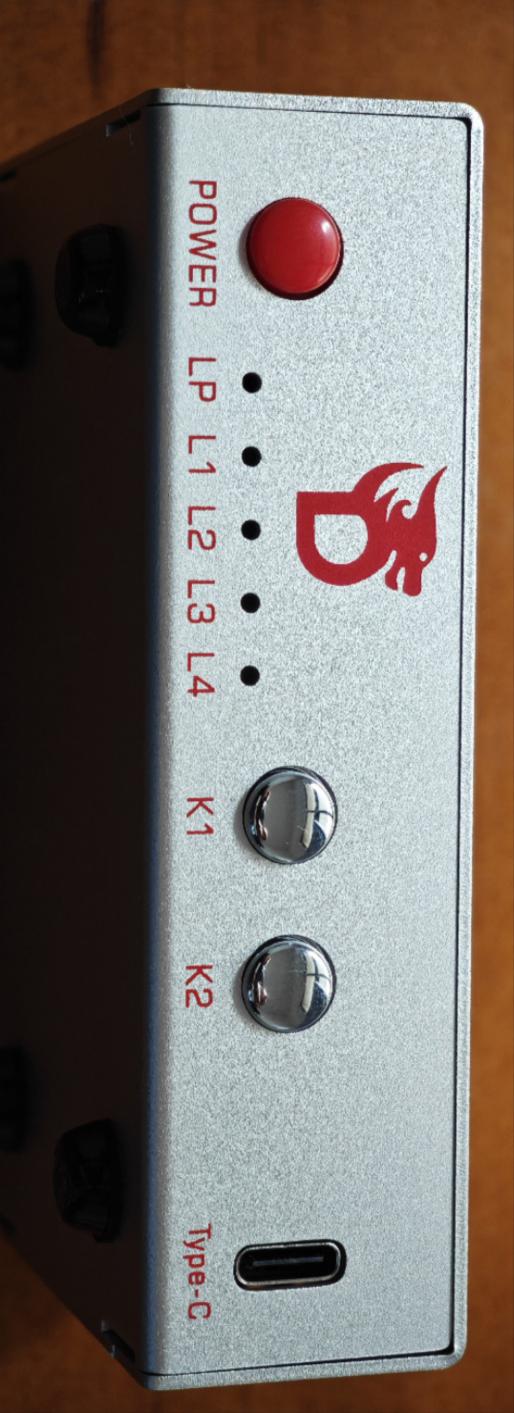
Check whether the main monitor is connected to power, and whether the other end of the cable at the HDMI1 port is connected to the main monitor. The source says the problem is at the main monitor.
From a third computer, remotely connect to PC 2 and set its refresh rate to 60 Hz. Then increase it gradually: 1K: 60 → 120 → 144 → 240 Hz; 2K: 60 → 120 → 144 Hz.
If the screen remains blank, use a third computer to remotely connect to PC 2. In the AMD graphics driver, set the color depth to 8 bit / 8 bpc: right-click the desktop → AMD settings → Display → Color Depth. The supplied guide names www.amd.com for AMD processor and graphics-card driver support.
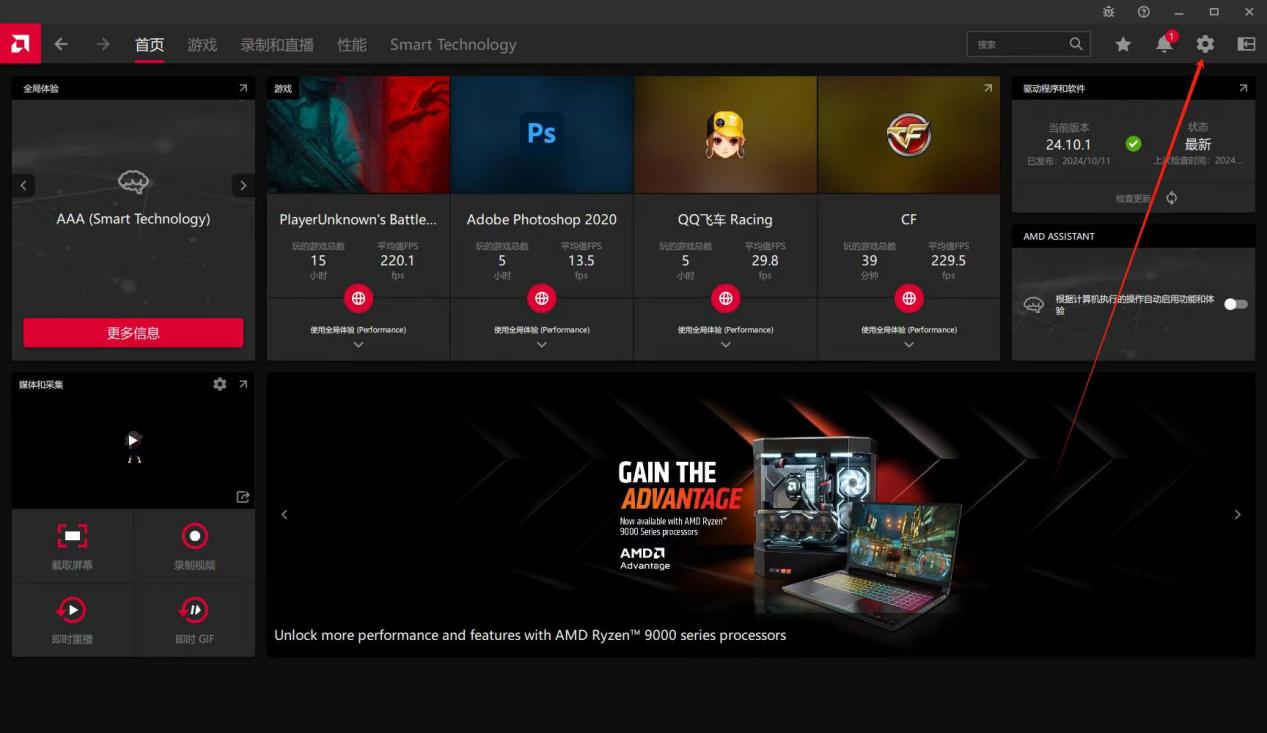
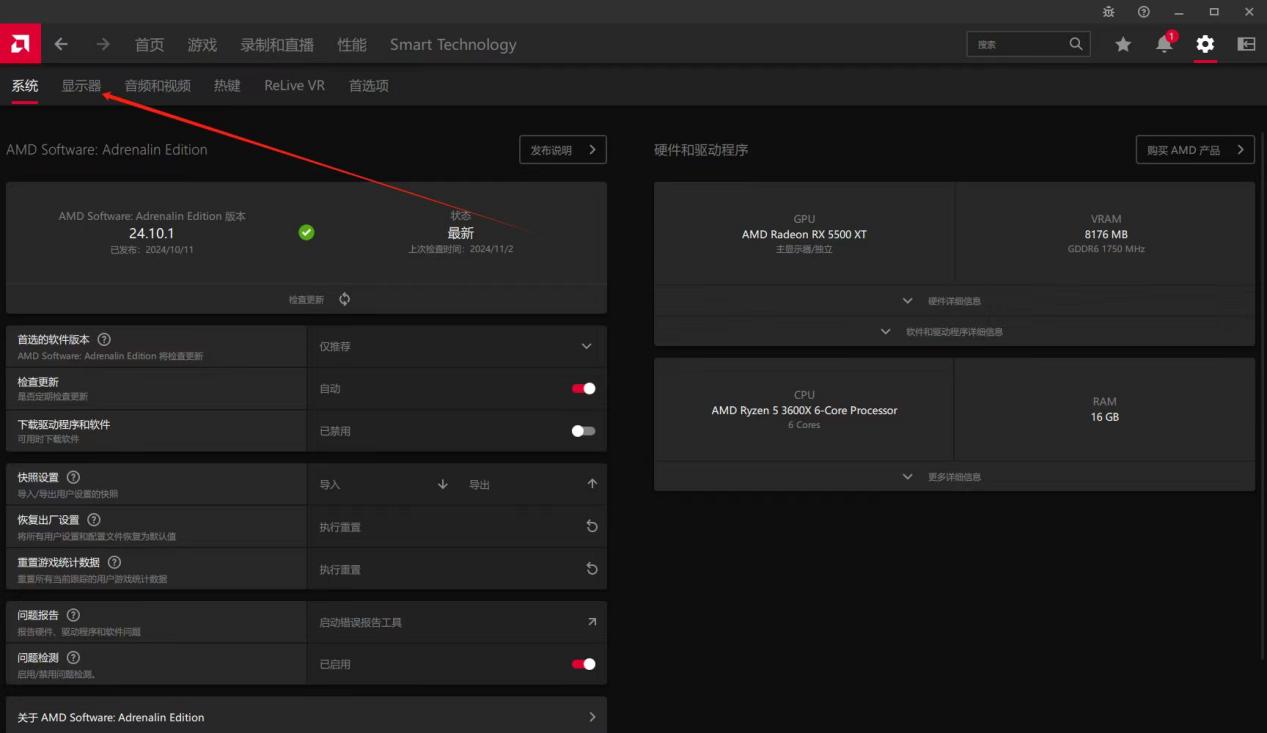
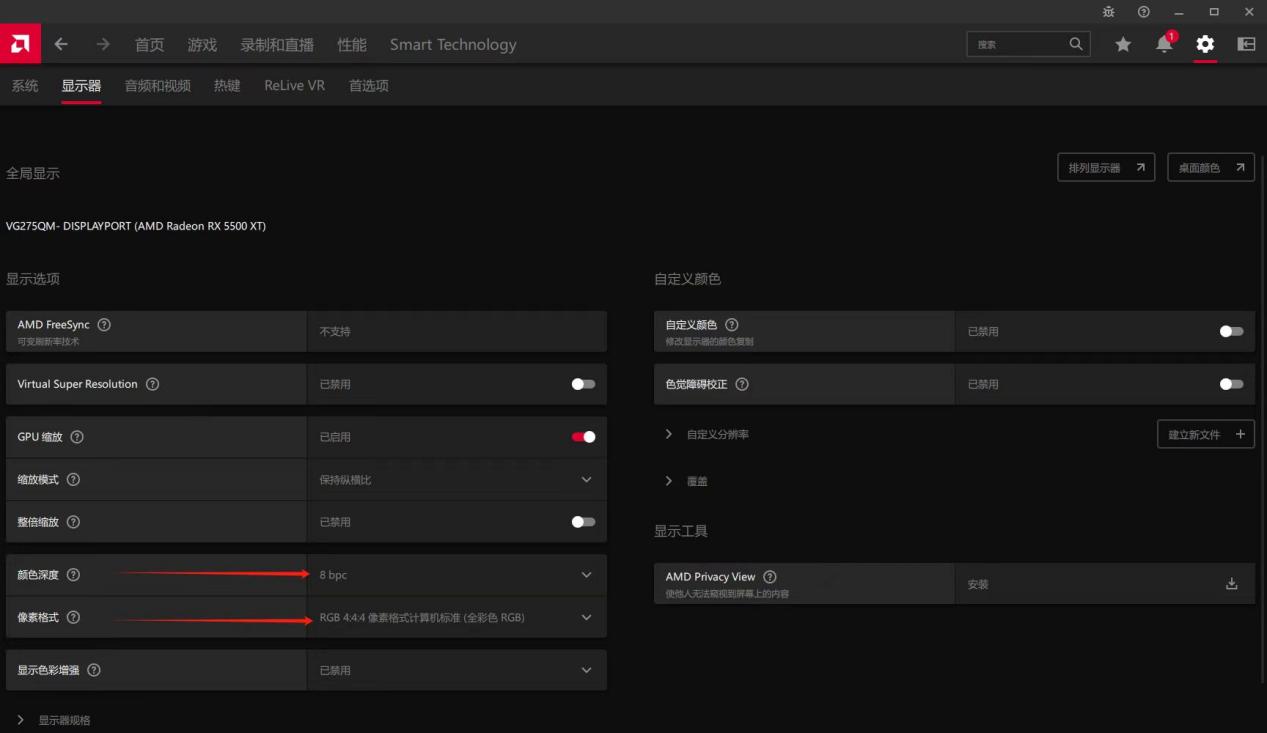
DC240HS and DC255 have the same wiring, D1 / D2 / H1 / H2 indicator meanings, supported resolutions and refresh rates. Only their K1–K4 button functions differ. The model-specific button sections are kept separate below.
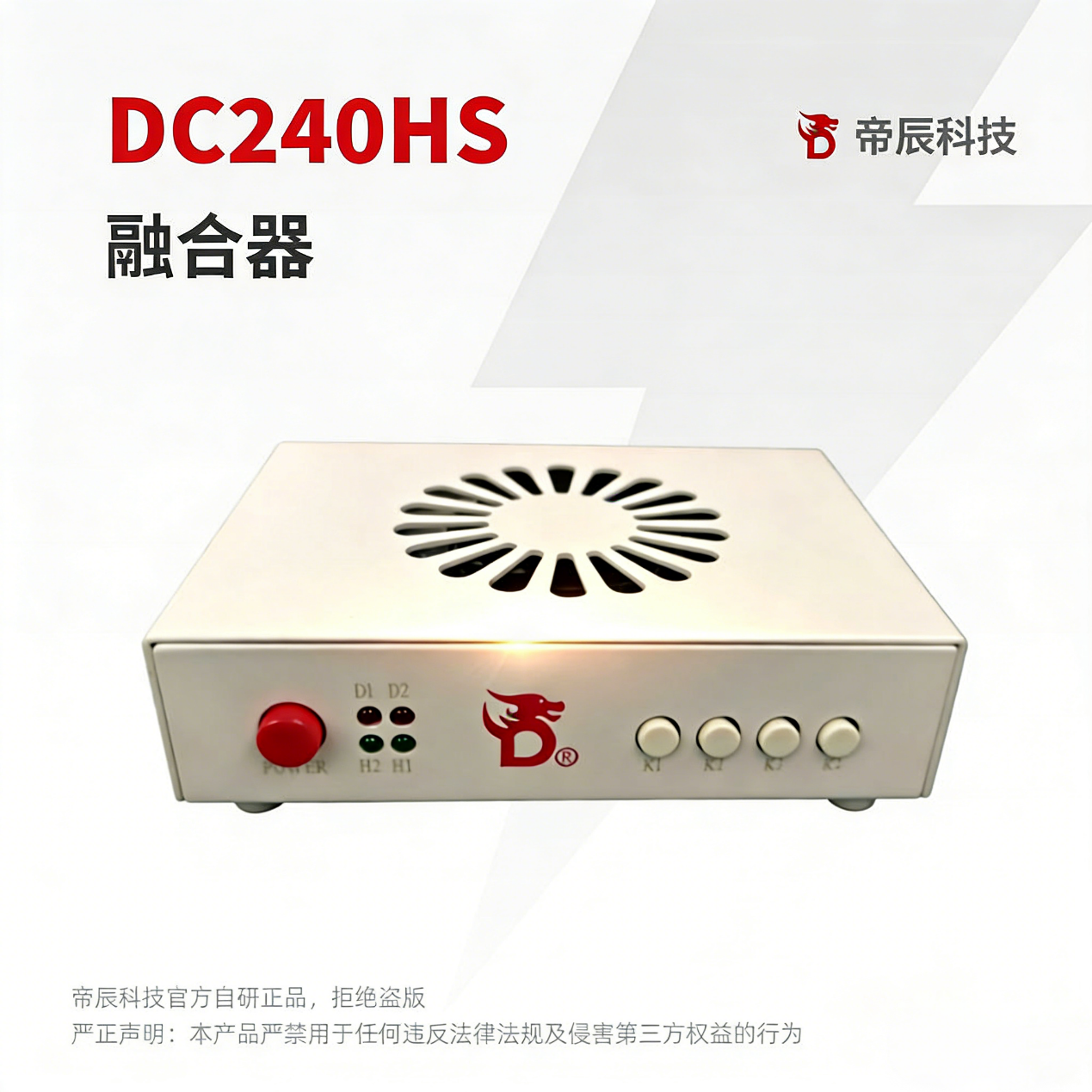
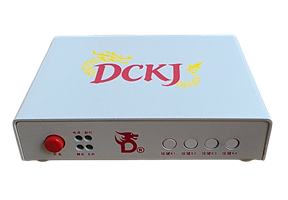
The DC240HS guide identifies Type-C as a program-upgrade port. The supplied DC255 cable guide says not to connect it during normal use.
| Light | Meaning |
|---|---|
| D1 | Power; steady on is normal. |
| D2 | Blending function; steady on = on, off = off. |
| H2 | HDMI2 / second-PC input signal; steady on is normal. |
| H1 | HDMI1 / main-PC input signal; steady on is normal. |
The Power button is the power switch on both models.
| Resolution | Refresh-rate range |
|---|---|
| 1920 × 1080 | 60–240 Hz |
| 2560 × 1440 | 60–144 Hz |
| 2560 × 1080 | 60–200 Hz |
| 3440 × 1440 | 60–100 Hz |
| 3840 × 2160 · 4K | Up to 60 Hz |
Other custom resolutions are also supported. The 3440 × 1440 line is ultrawide resolution, not 4K.
The DC240HS guide says the Fuser automatically adapts to the display and is plug-and-play. It supports automatic adaptation only; manual parameter injection is not available.
The DC240HS guide specifies a 12V / 2A power supply by default.
Other functions listed by the DC240HS guide: plug-and-play, automatic standby, saved settings, temperature-controlled cooling and very low latency.
For genuine-product tracing and after-sales protection, the supplied guide names dckj686.com. Its anti-counterfeit-code reading tutorial and tool address is wwqt.lanzoum.com/b04wf3l0b, password 6666.
The supplied product picture states that this is a DICHEN Technology self-developed original product and rejects pirated copies. It prohibits using the product for any act that violates laws or regulations or infringes a third party's rights.
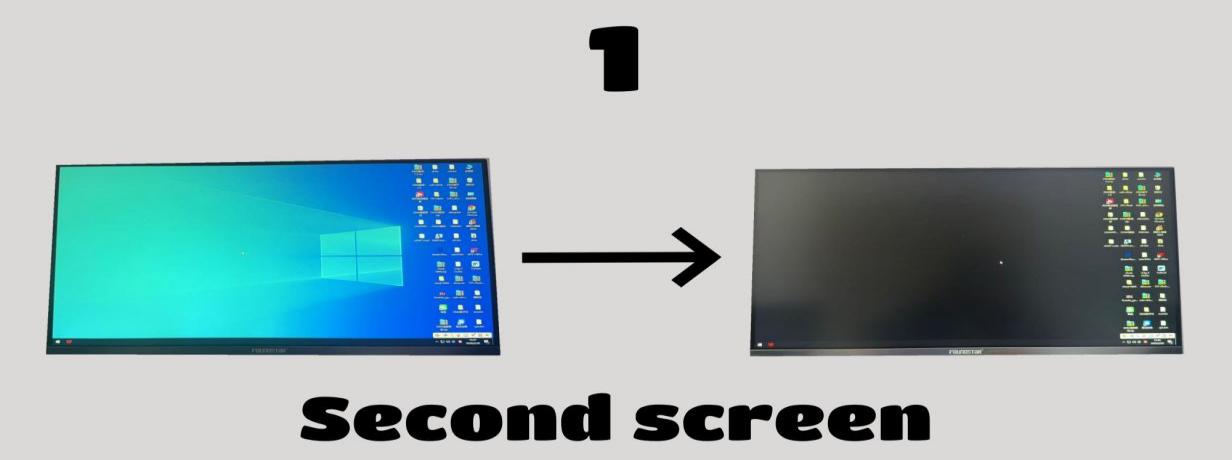
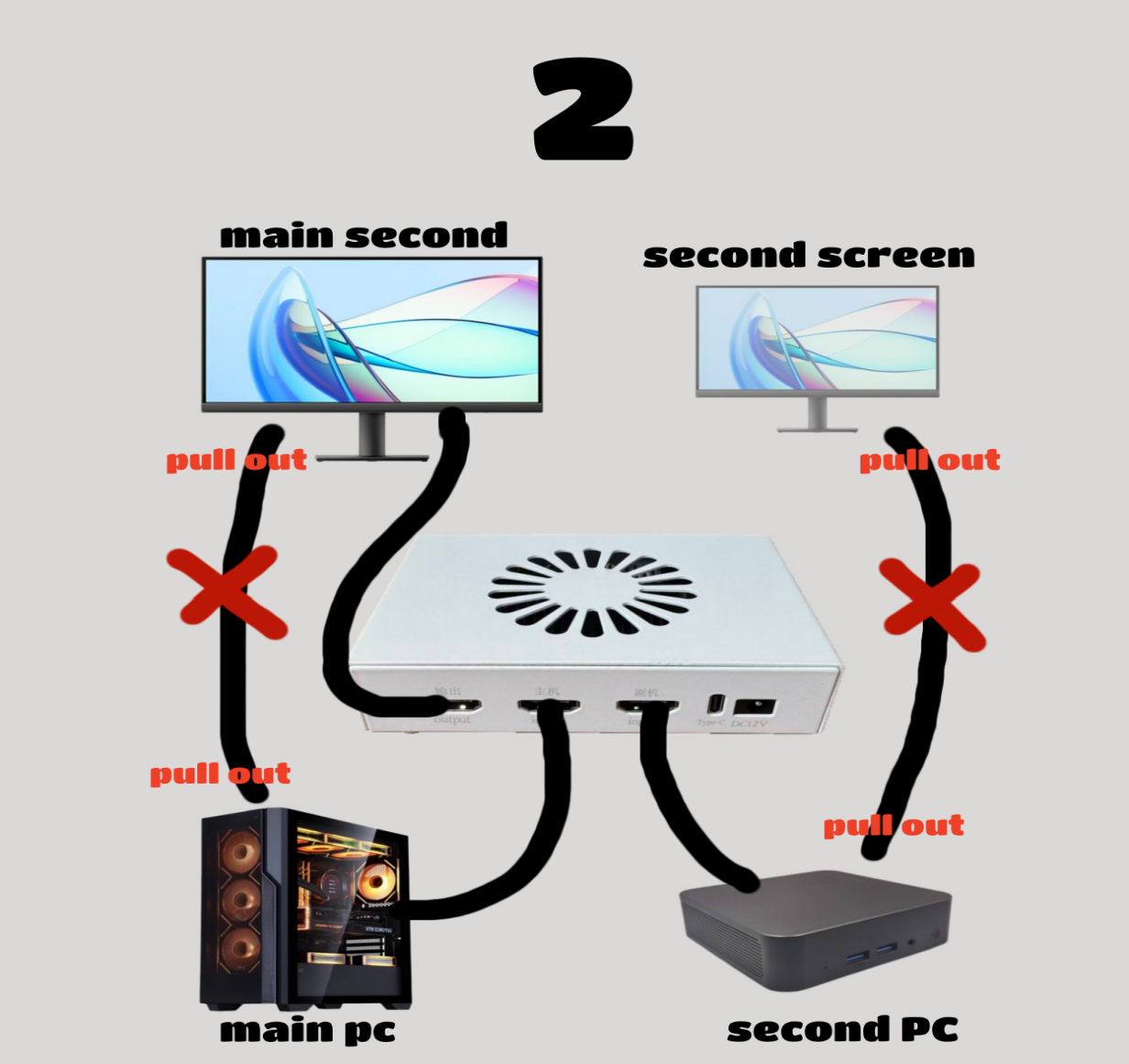
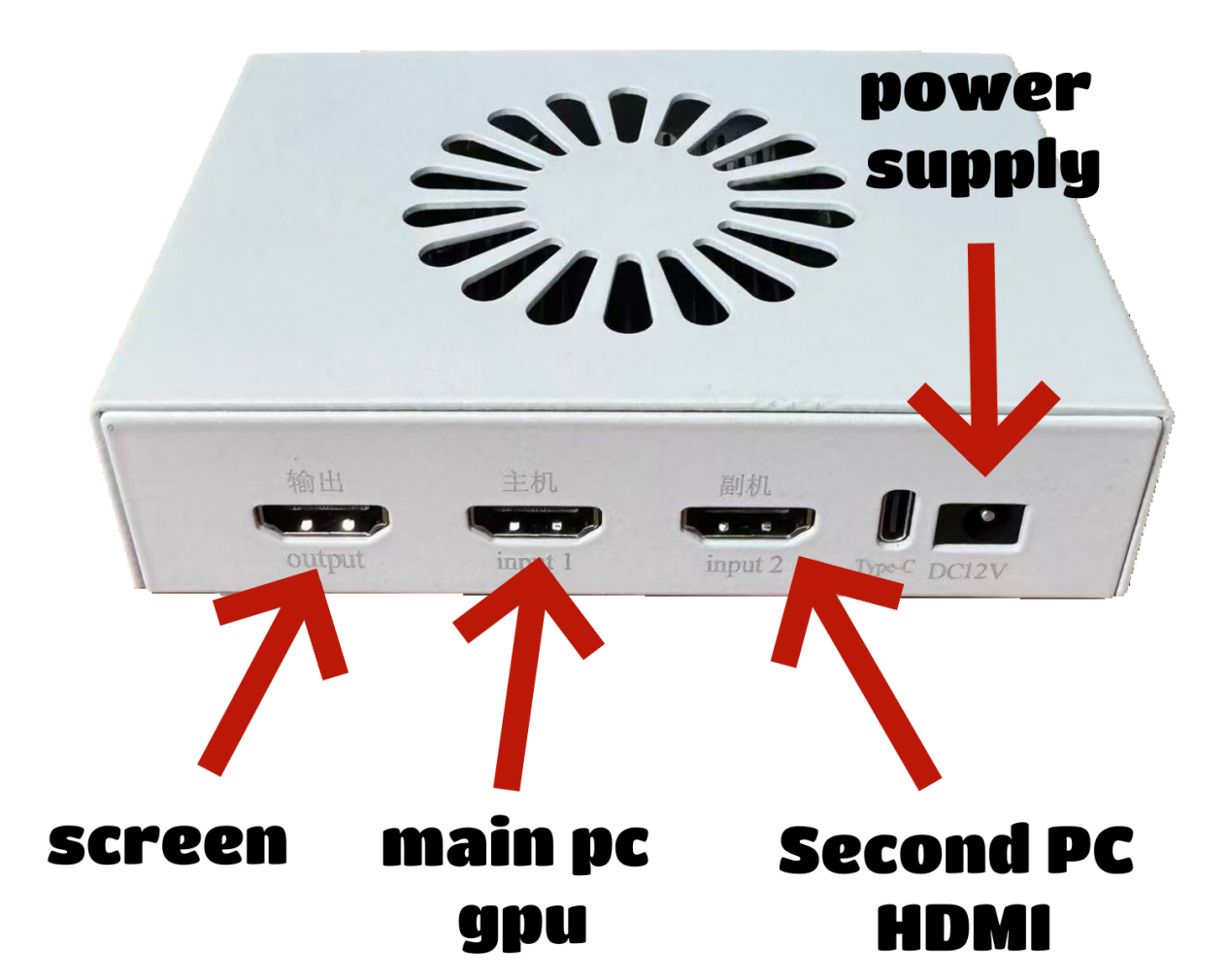
English translation of the supplied Latest 4K DP Fuser Quick User Guide. Its main PC and monitor use DisplayPort; the second PC uses HDMI.
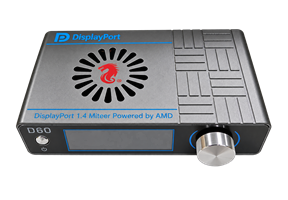 D60 FuserDP main path · HDMI second-PC input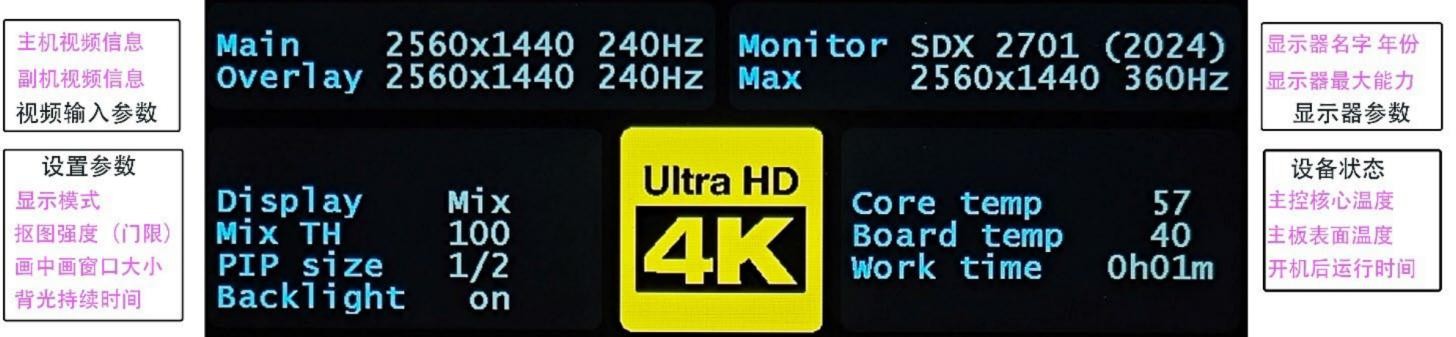
| Setting | Options and source instructions |
|---|---|
| Display mode | Mix (blended); M Only (main PC only); O Only (second PC only); PIP1–4 (not yet available). |
| Keying strength | 0–250 in increments of 10. The source says about 30 is generally sufficient. |
| Mode selection | “AOTU” (spelled this way in the source): automatic adaptation for 1K, 2K and 3K; 2K-only; 4K-only. After changing mode, restart the Fuser using the rear red power button. |
| Backlight duration | 10 s; 30 s; 50 s; or On (always on). |
| After pressing power | Cause stated in the guide |
|---|---|
| No light | Board hardware or power-adapter problem. |
| Red, then no light | DDR or main controller problem. |
| Red, then flashing blue | Temperature-sensor abnormality. |
| Red, then flashing green | Not activated, or an occasional abnormality. |
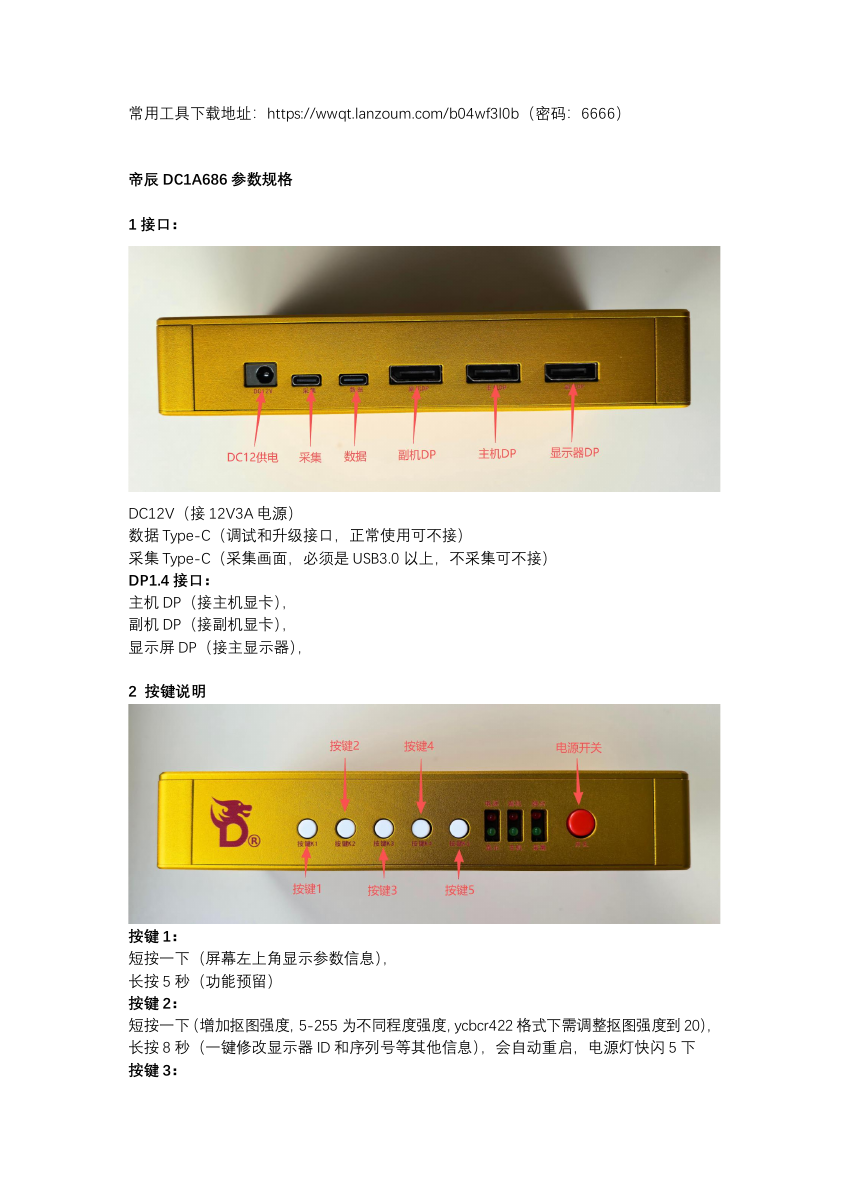
DICHEN DC1A686 Fuser manual · Full signal communication (new feature). The manufacturer's own original product; reject counterfeits.
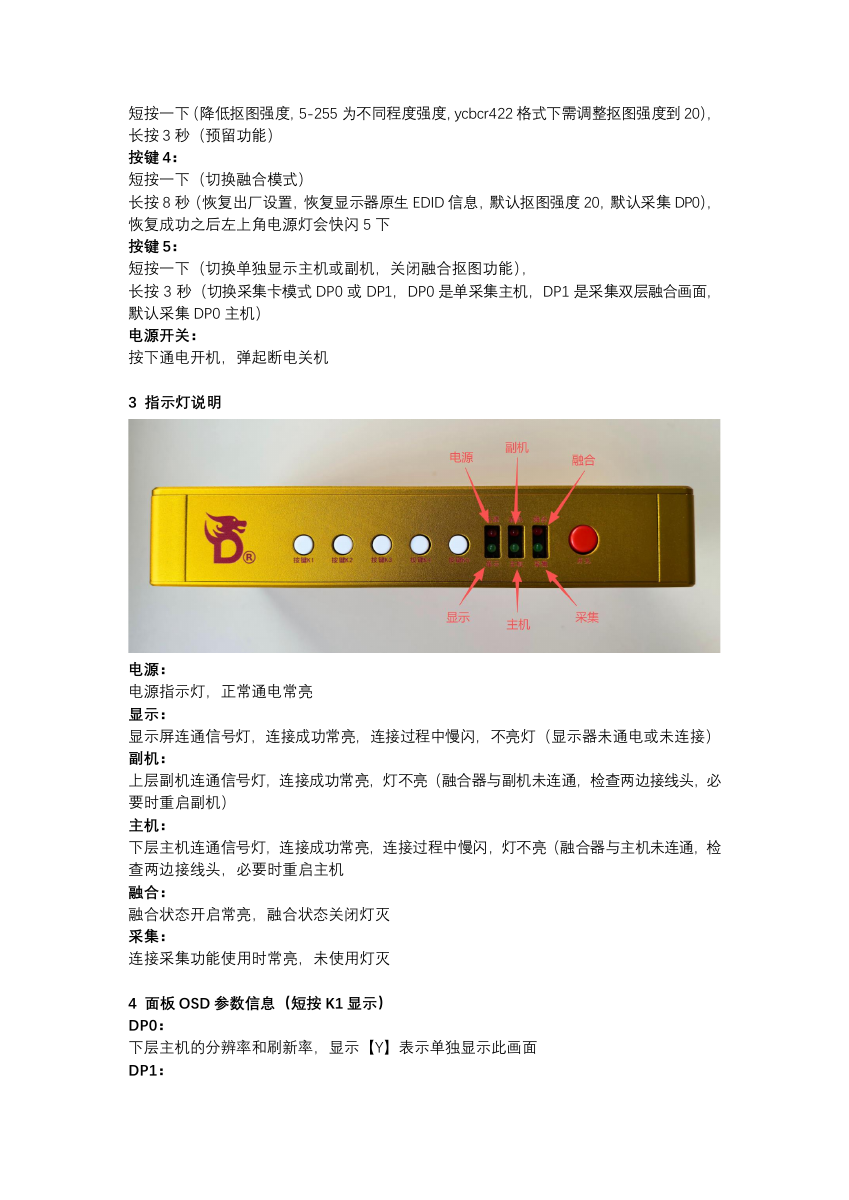
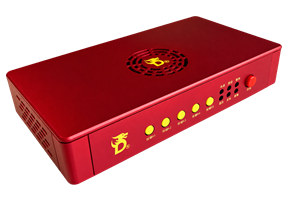 DC1A686DP 1.4 × 3 · DC 12V / 3A
DATA Type-C is for debugging/upgrades and is optional in normal use. CAPTURE Type-C is only for optional capture and requires USB 3.0 or faster.
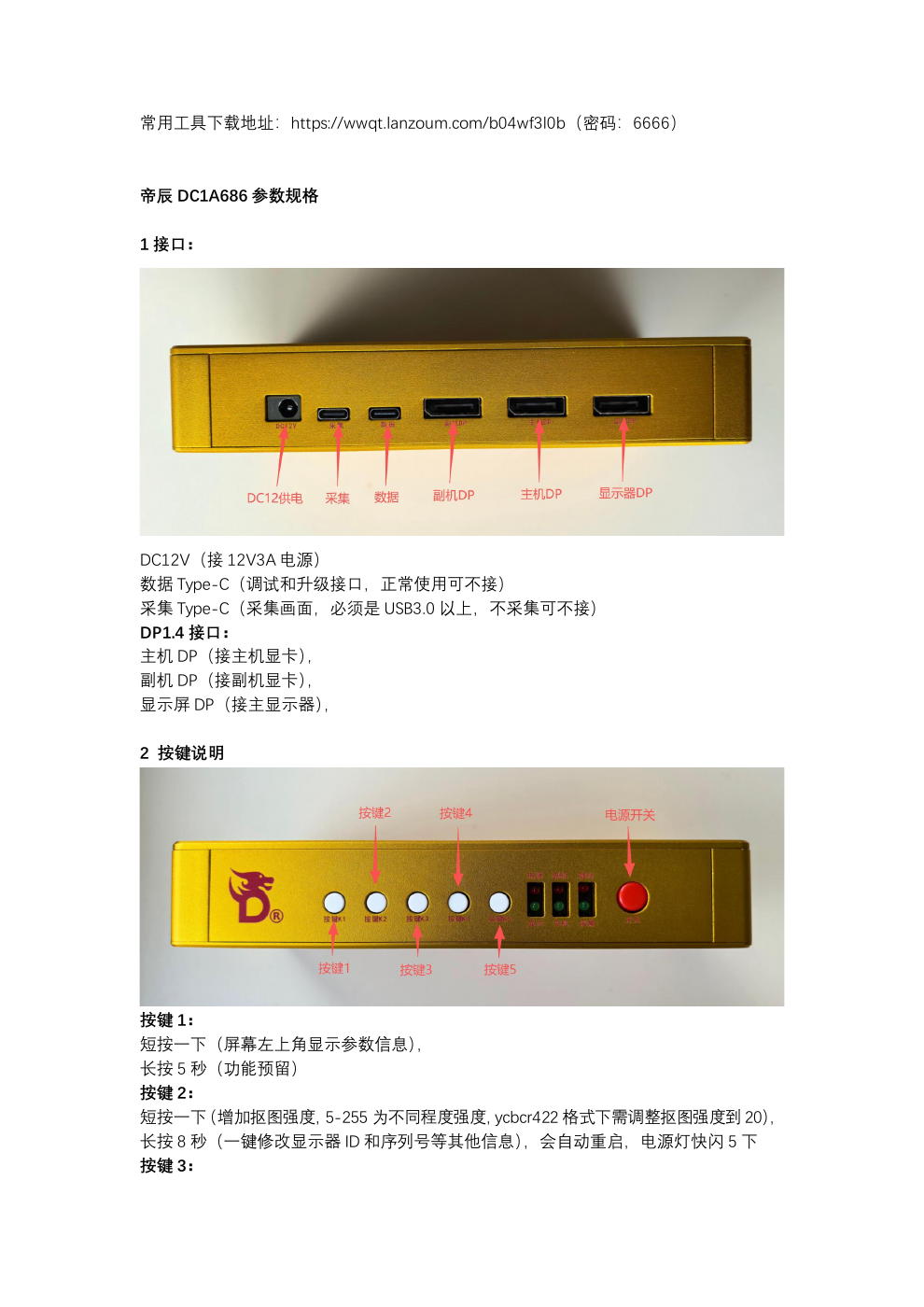
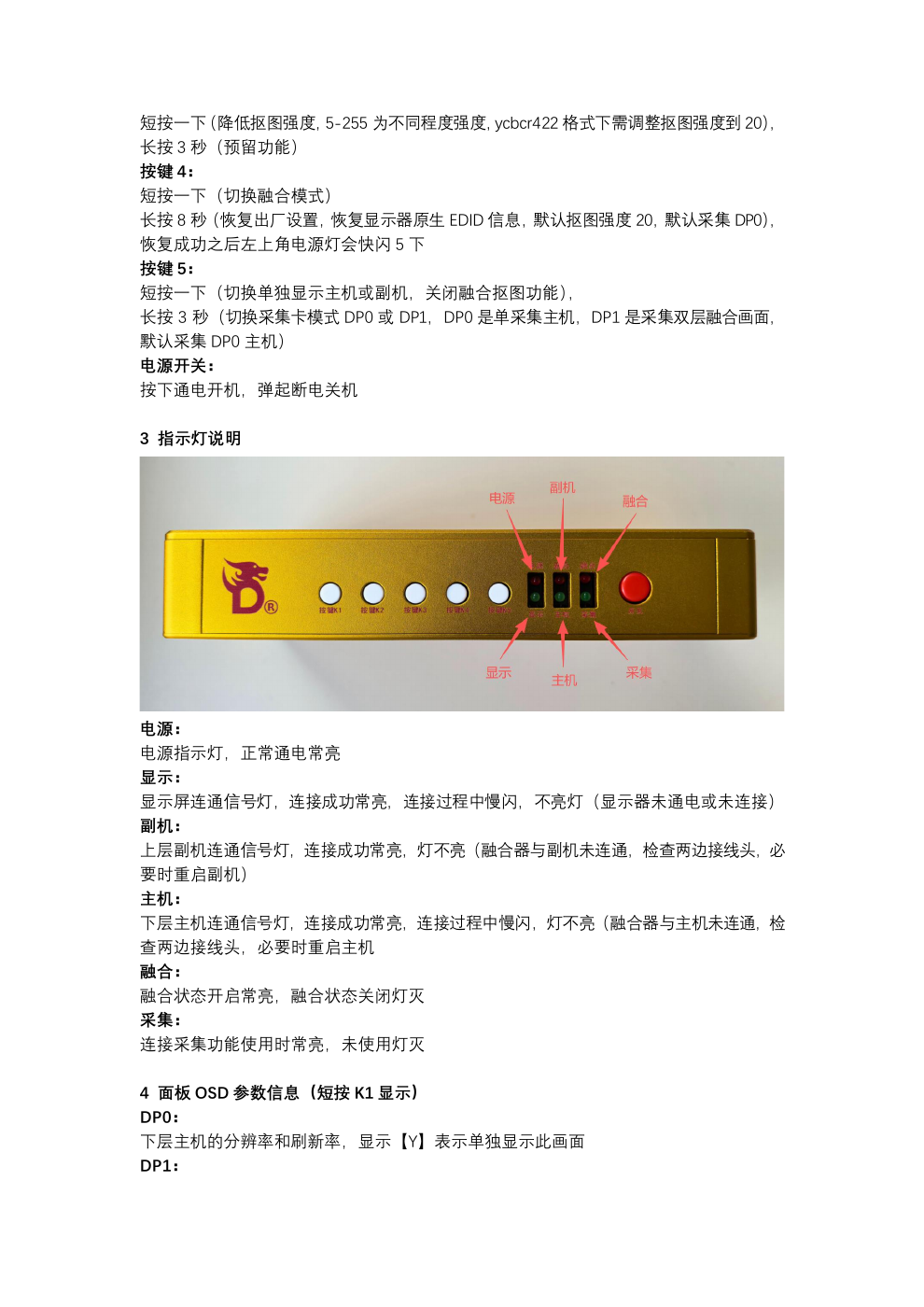
| Button | Short press | Long press in the supplied manual |
|---|---|---|
| K1 | Show parameters in the top-left corner of the monitor. | 5 s: reserved function. |
| K2 | Increase keying strength (5–255). Set it to 20 in YCbCr 4:2:2 format. | 8 s: change monitor ID, serial number and other identity information with one action; the unit restarts and the power light flashes quickly five times. |
| K3 | Decrease keying strength (5–255). Set it to 20 in YCbCr 4:2:2 format. | 3 s: reserved function. |
| K4 | Toggle blend mode. | 8 s: factory reset. Restores the monitor's native EDID, keying strength 20 and capture DP0. The power light flashes quickly five times after success. |
| K5 | Switch between separately displayed main and secondary pictures, turning off blending and keying. | 3 s: change capture mode between DP0 (main picture only) and DP1 (two-layer blended picture). DP0 is the default. |
| Power | Push down to power on; release to power off. | — |
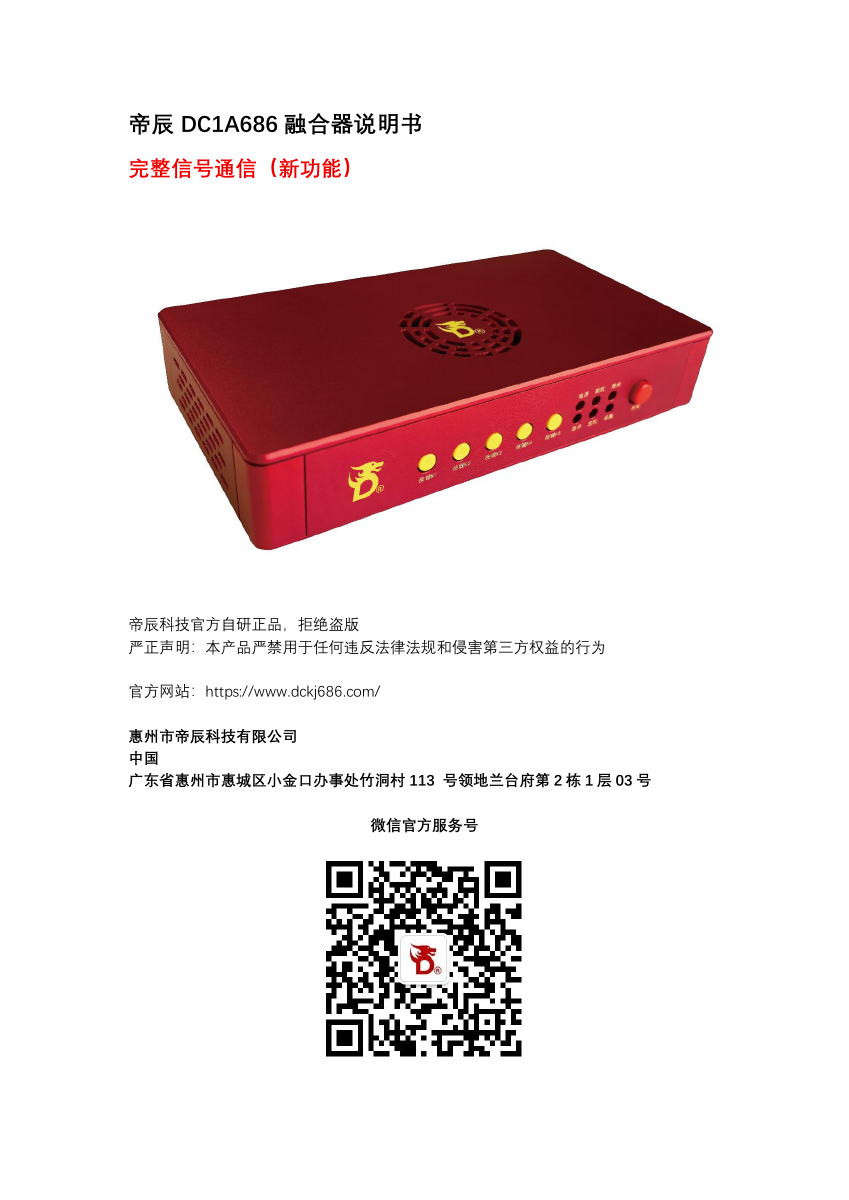
| Light | State and meaning |
|---|---|
| Power | Steady on when power is normal. |
| Display | Steady on when the monitor link succeeds; slow flash while connecting; off if the monitor has no power or is not connected. |
| Secondary | Steady on when the upper/secondary PC is connected; off if not connected. Check both cable ends and restart the secondary PC if needed. |
| Main | Steady on when the lower/main PC is connected; slow flash while connecting; off if not connected. Check both cable ends and restart the main PC if needed. |
| Blend | Steady on when blending is enabled; off when disabled. |
| Capture | Steady on while capture is connected and used; off when unused. |
| Field | Meaning |
|---|---|
| DP0 | Main/lower PC resolution and refresh rate; [Y] means this picture is displayed alone. |
| DP1 | Secondary/upper PC resolution and refresh rate; [Y] means this picture is displayed alone. |
| ALPHA | Keying strength, adjustable from 5 to 255; default 20. |
| RH | ON = blend enabled; OFF = blend disabled. |
| CJ | Capture mode: DP0 = main picture only; DP1 = two-layer blended picture. |
| SN / ID | Current monitor serial number / monitor ID. |
| FW / TEMP | Firmware date / current device temperature. |
| DNA | Device's unique chip code. |
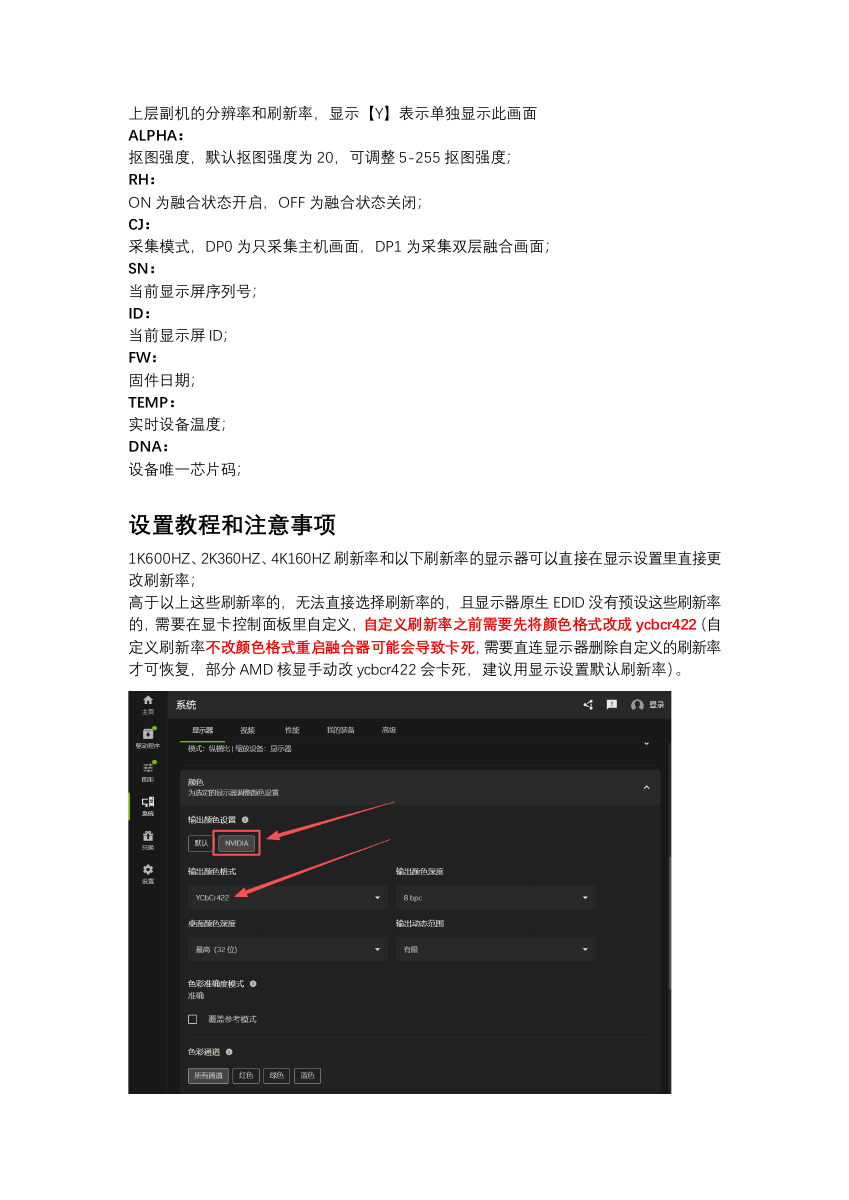
The manual warns that creating a custom rate without first changing color format may leave the Fuser frozen after restart. Some AMD integrated graphics may freeze when YCbCr 4:2:2 is set manually; in that case, use the default refresh rates in display settings.
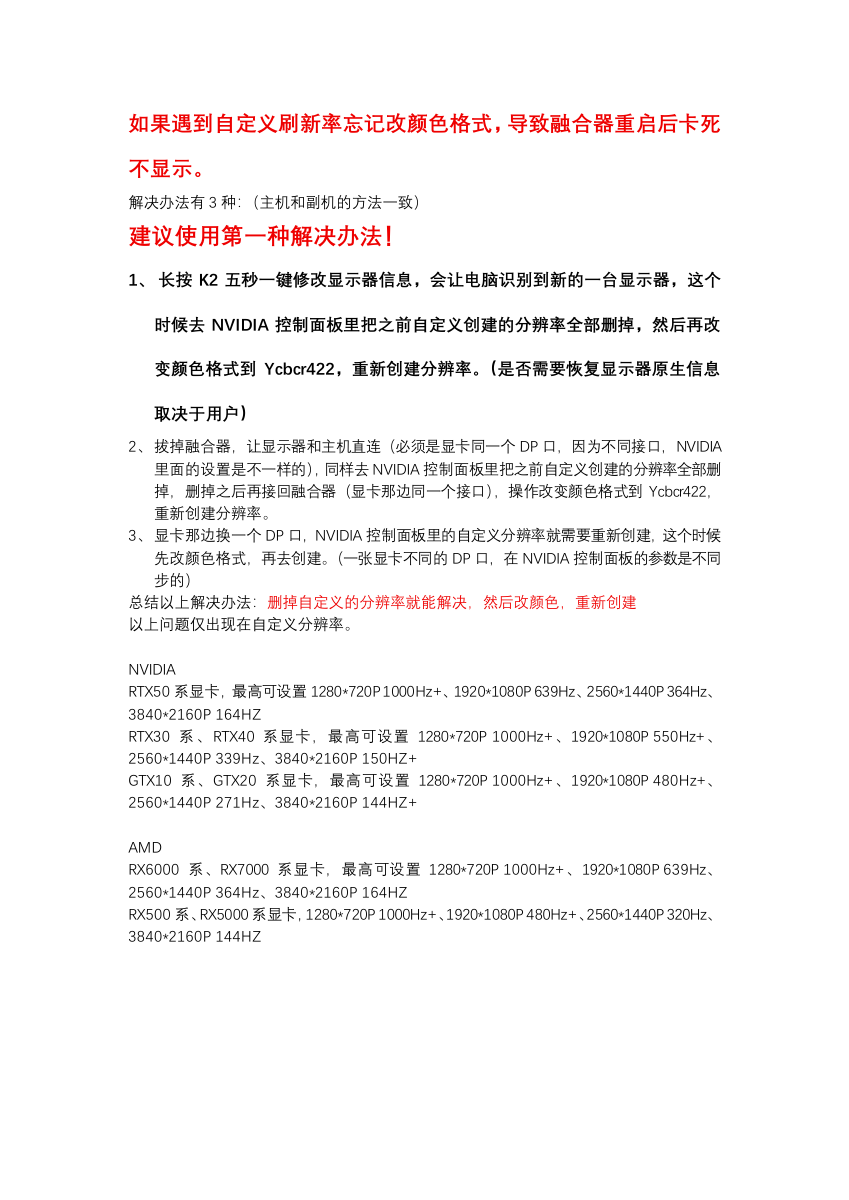
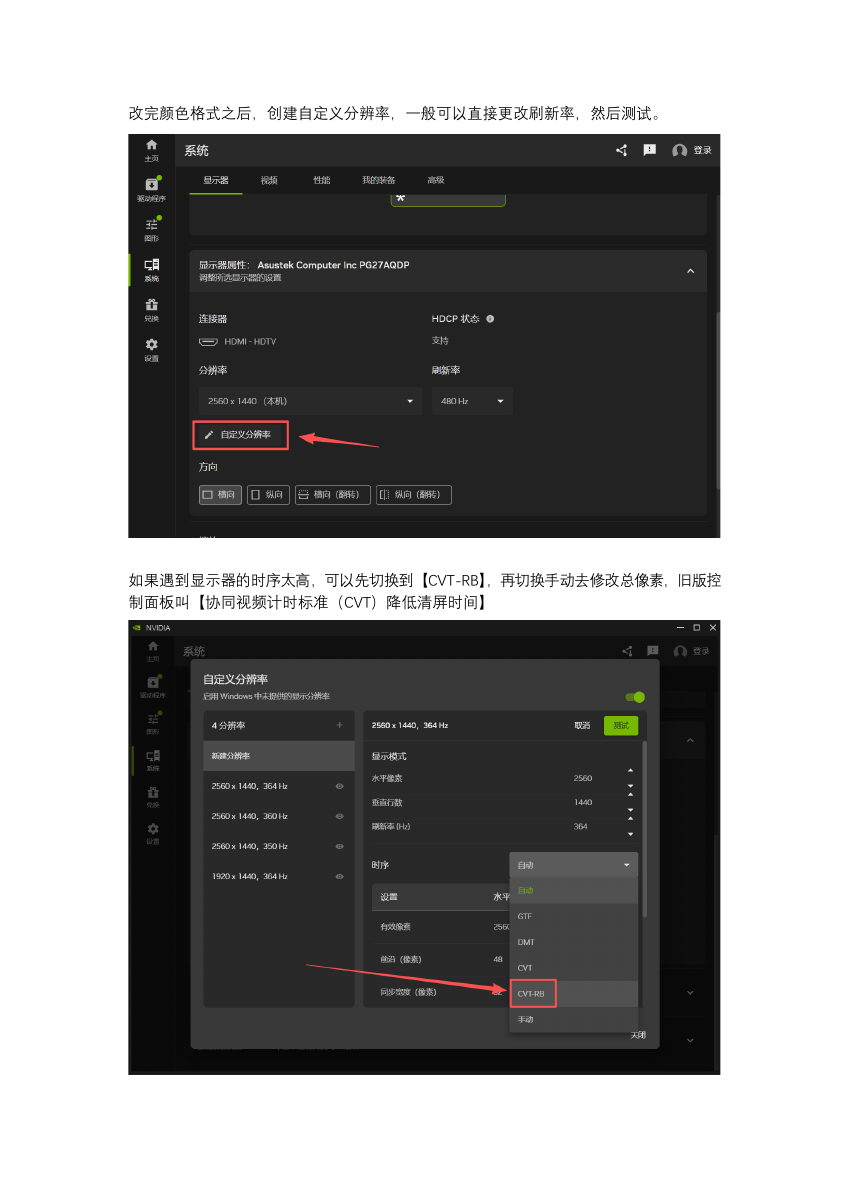
The manual gives three recovery methods for either PC and recommends method 1. Delete the custom resolutions, change to YCbCr 4:2:2, then recreate the required resolution.
The manual says this blank-screen problem occurs only with custom resolutions.
| GPU family | 720p | 1080p | 1440p | 4K |
|---|---|---|---|---|
| NVIDIA RTX 50 | 1000 Hz+ | 639 Hz | 364 Hz | 164 Hz |
| NVIDIA RTX 30 / 40 | 1000 Hz+ | 550 Hz+ | 339 Hz | 150 Hz+ |
| NVIDIA GTX 10 / 20 | 1000 Hz+ | 480 Hz+ | 271 Hz | 144 Hz+ |
| AMD RX 6000 / 7000 | 1000 Hz+ | 639 Hz | 364 Hz | 164 Hz |
| AMD RX 500 / 5000 | 1000 Hz+ | 480 Hz+ | 320 Hz | 144 Hz |
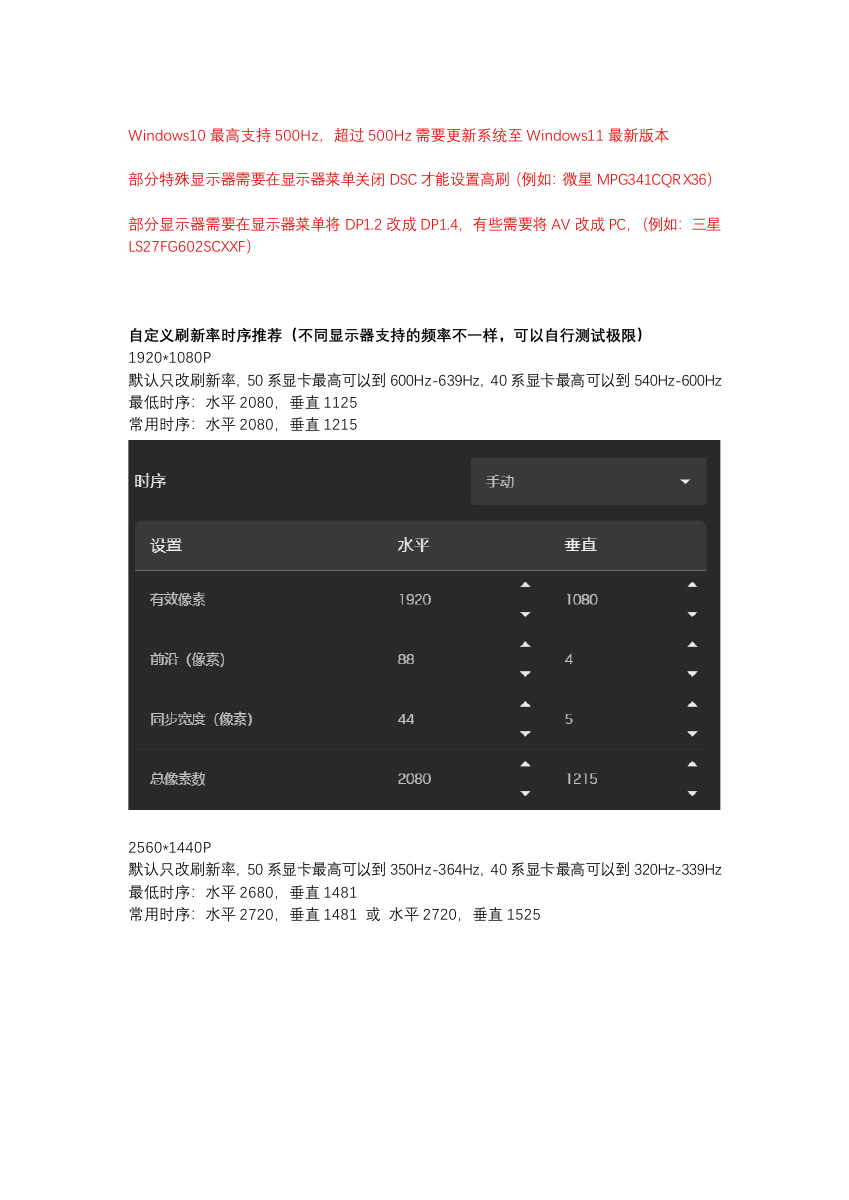
The manual says Windows 10 supports up to 500 Hz; rates above 500 Hz require an updated Windows 11. Some monitors need DSC disabled in their own menu (example: MSI MPG341CQR X36). Others require switching DP 1.2 to DP 1.4, or AV to PC (example: Samsung LS27FG602SCXXF).
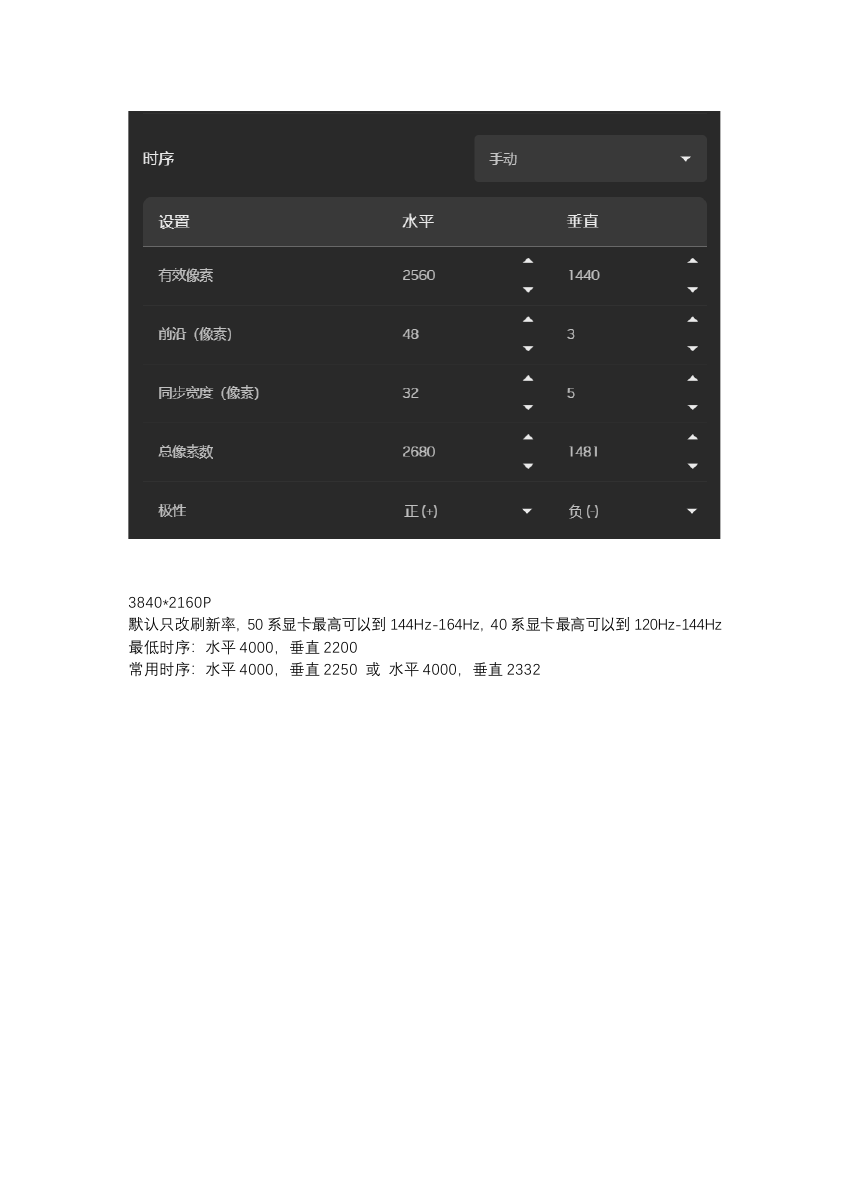
| Resolution | RTX 50 / RTX 40 suggested range | Minimum total pixels H × V | Common total pixels H × V |
|---|---|---|---|
| 1920 × 1080 | 600–639 / 540–600 Hz | 2080 × 1125 | 2080 × 1215 |
| 2560 × 1440 | 350–364 / 320–339 Hz | 2680 × 1481 | 2720 × 1481 or 2720 × 1525 |
| 3840 × 2160 | 144–164 / 120–144 Hz | 4000 × 2200 | 4000 × 2250 or 4000 × 2332 |
Monitor-supported limits differ; the manual says users may test the limit of their own display.
Huizhou Dichen Technology Co., Ltd., Building 2, Floor 1, Unit 03, No. 113 Zhudong Village, Xiaojinkou Subdistrict, Huicheng District, Huizhou, Guangdong, China. The manual includes an official WeChat service QR code and states that the product must not be used for unlawful acts or to infringe others' rights.
The manual prints a tool-download address at wwqt.lanzoum.com/b04wf3l0b with password 6666. This address has not been independently verified here; use the manufacturer to confirm any software before downloading.
All eight supplied pages are below for comparison with the English translation. Click a page to enlarge it here.
The three USB ports have different jobs. With the ports facing you, the supplied photo shows USB1 left, USB2 middle and USB3 right.
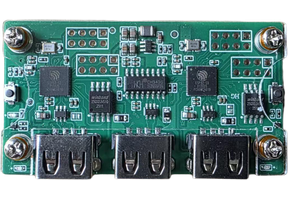 MAKCUUSB1 · USB2 · USB3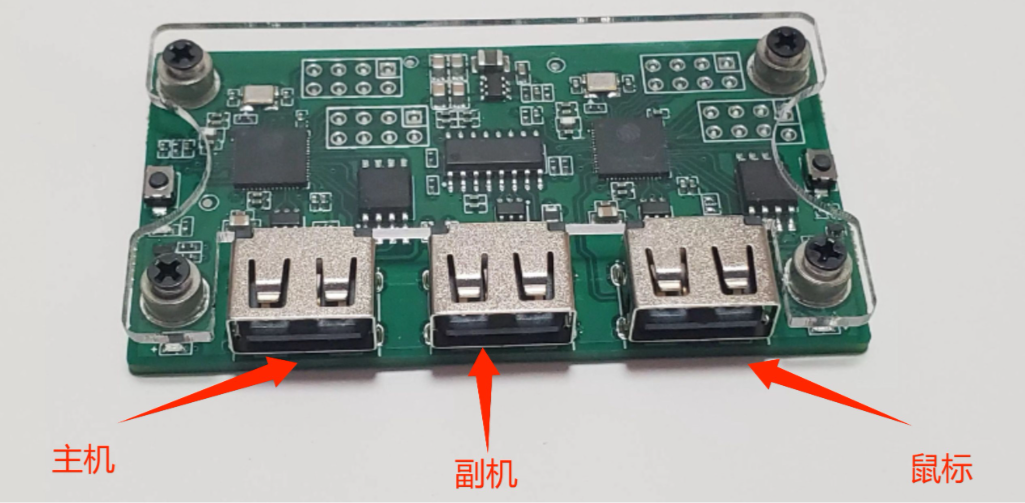
Recommended USB cable — you can use any USB 2.0 or 3.0 cable
Recommended mouse — any wire or wireless mouse
If you don’t have a Second PC we recommend — Mini PC
Recommended OS — Windows 10 on both computers
All software setup/installation is done on the second computer that is connected to the DMA card by way of USB. DO NOT install/setup this software into the main computer in which you installed the DMA card into the motherboard’s PCIe slot. Installing files onto the wrong computer may result in detection.
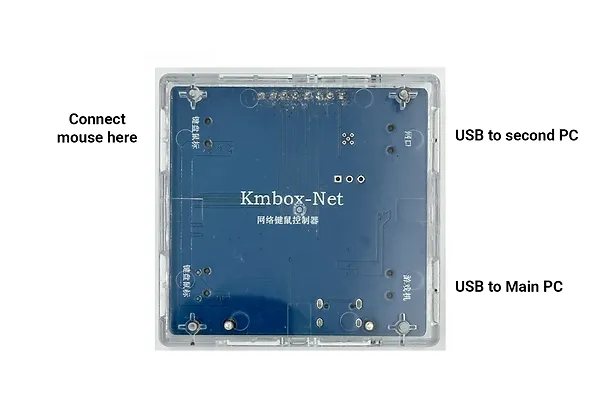
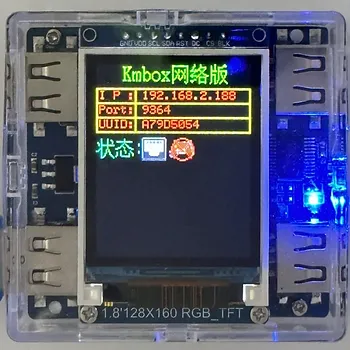

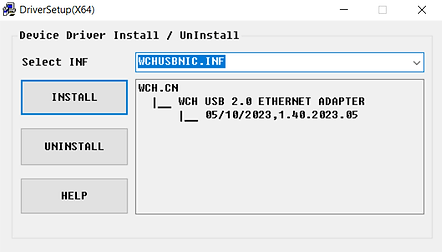
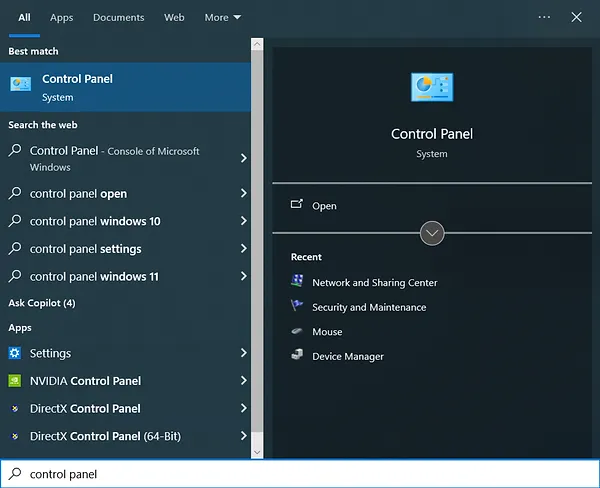
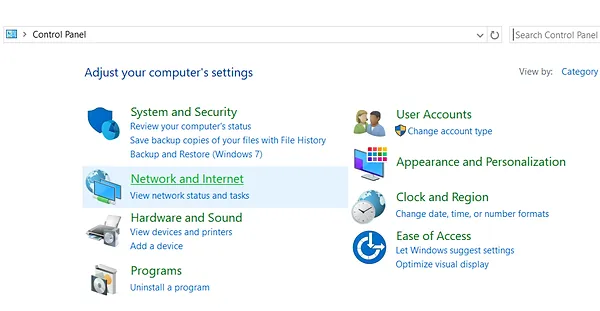
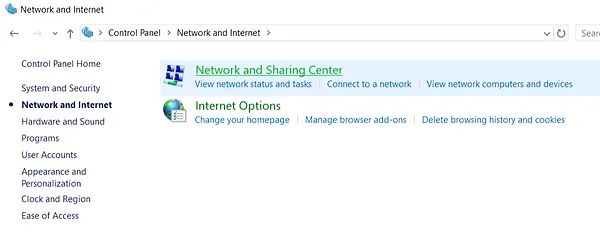
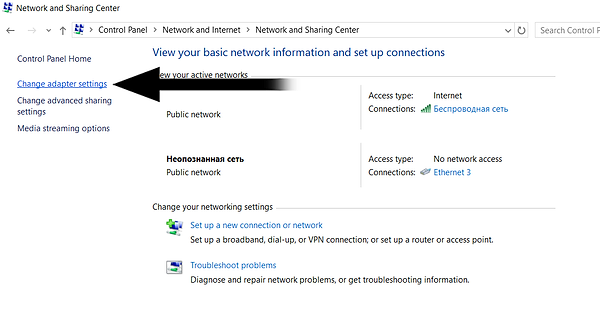
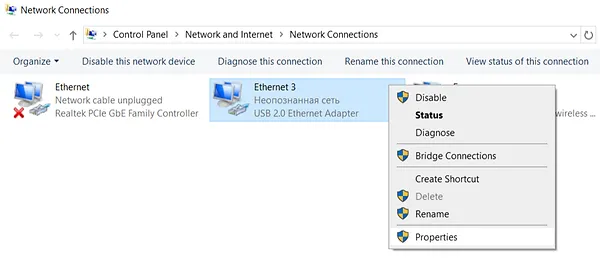
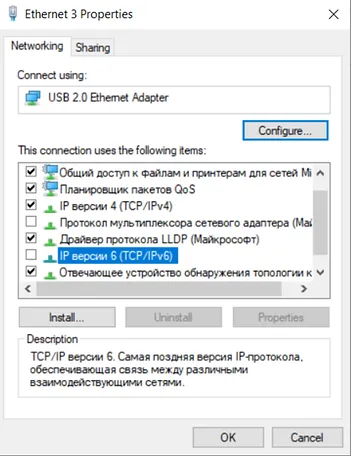
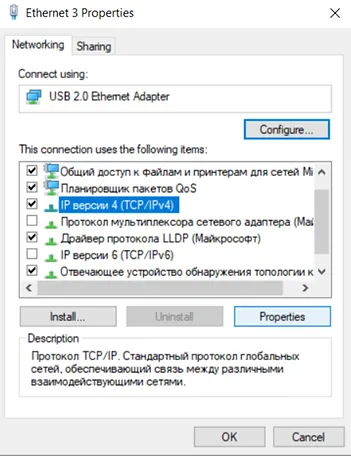
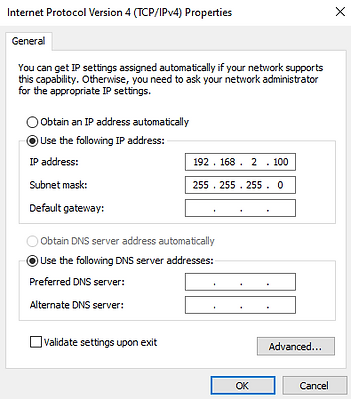
Ferrum's own documentation names its two computer connections Output and Input. Use those printed names on your device; do not assume the ports have the same left-to-right order as MAKCU or KMBox.
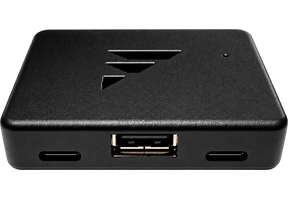 Ferrum OneOutput PC · Input PC · physical mouse
Use a separate mouse directly on the control PC if you need to operate that computer while testing pass-through.
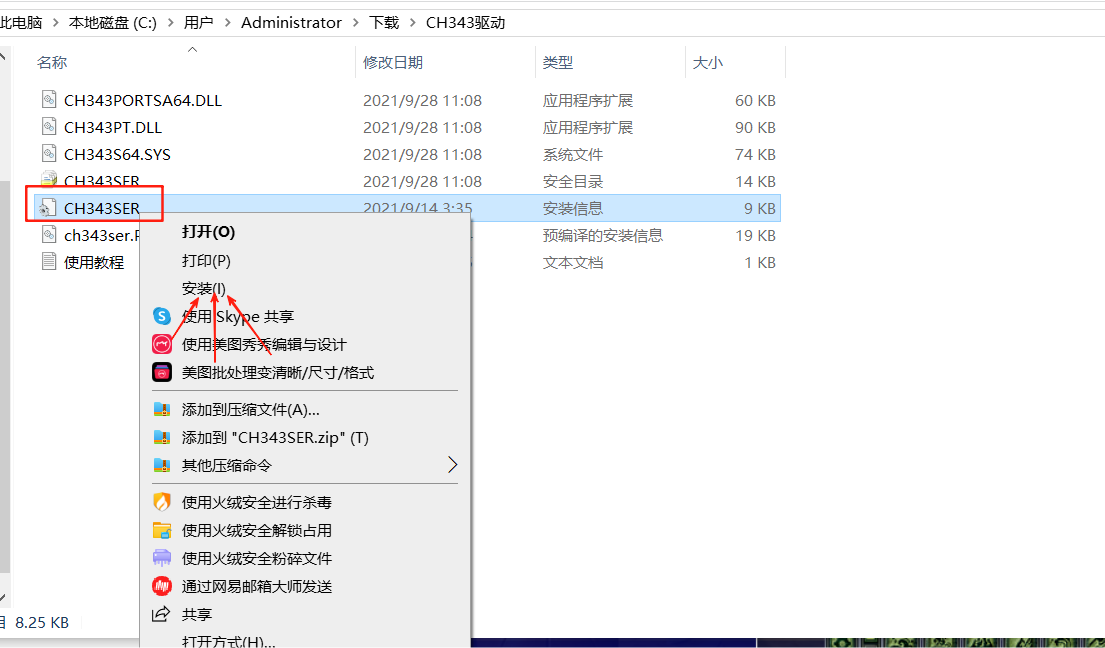
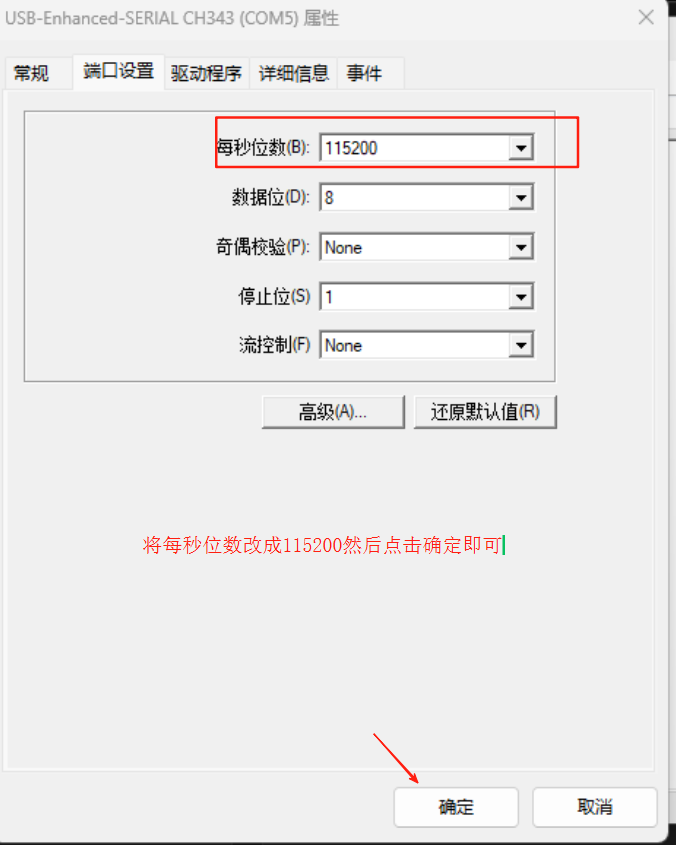
The current software API and legacy serial API are not the same setup. Avoid changing COM speed or installing third-party drivers until the exact mode is known.
Do not disable Secure Boot, Memory Integrity, or other Windows protections as a routine troubleshooting step. Ask for a compatible, properly signed driver instead.